Creating a Meeting as a Coach - Quick Start
Create and Schedule a Meeting in Zoho CRM
1. Start from the Home Page by navigating to: https://crm.zoho.com/crm/org889112992/tab/Home/begin
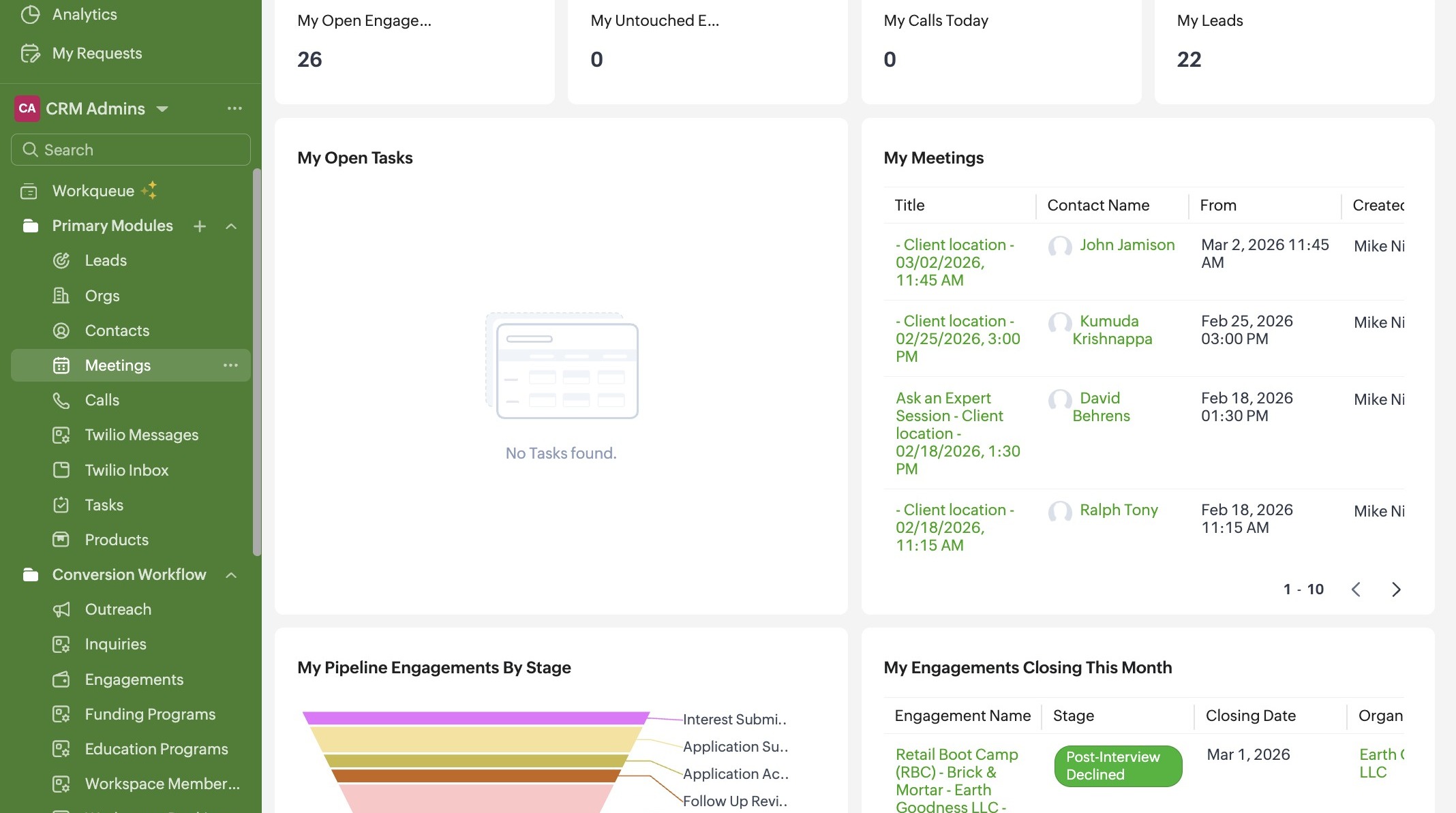
2. Click "Meetings"
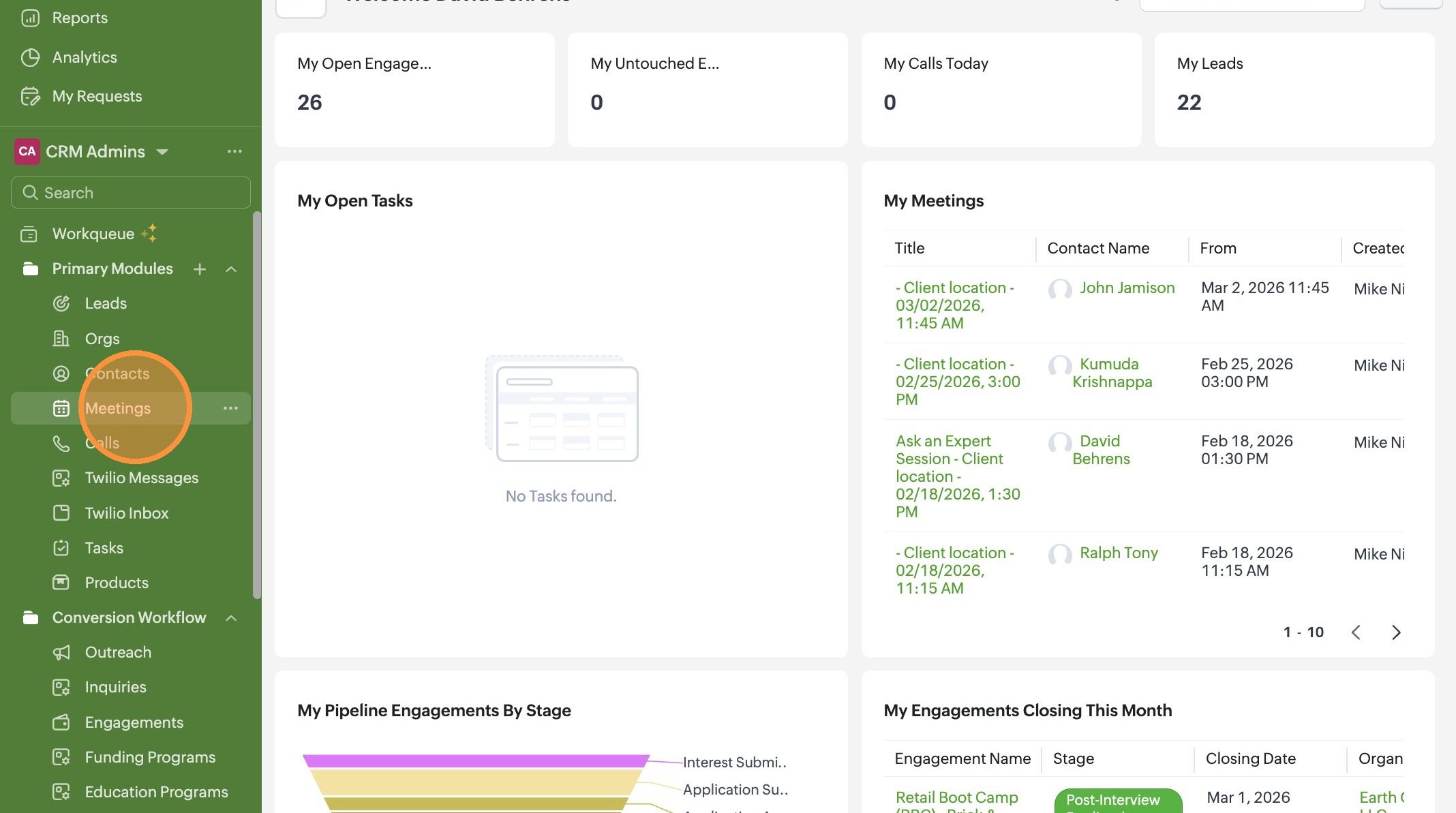
3. Click "Create Meeting"
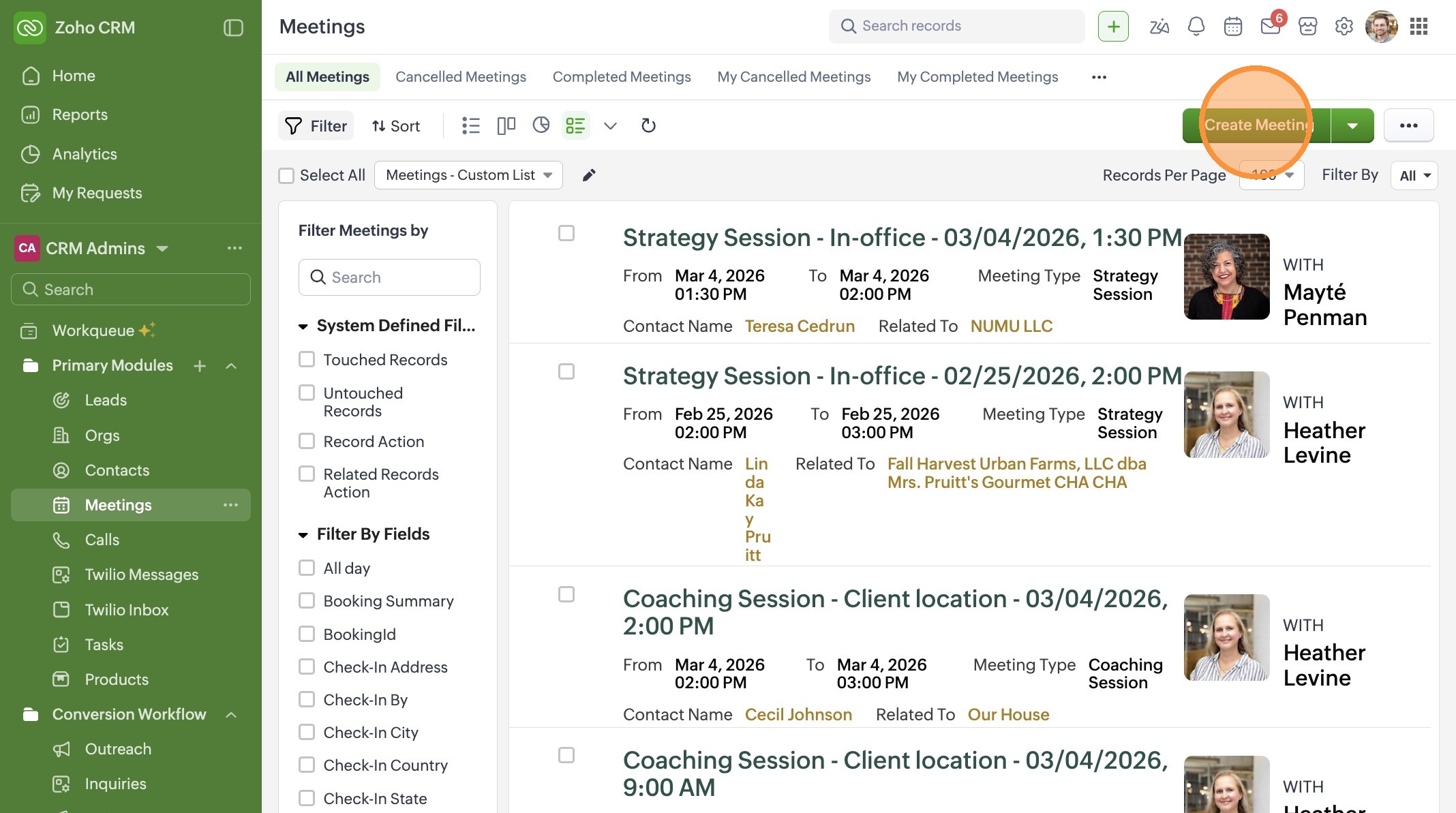
4. You can leave the meeting Title as "New Meeting". This meeting title will automatically change once the meeting is saved.
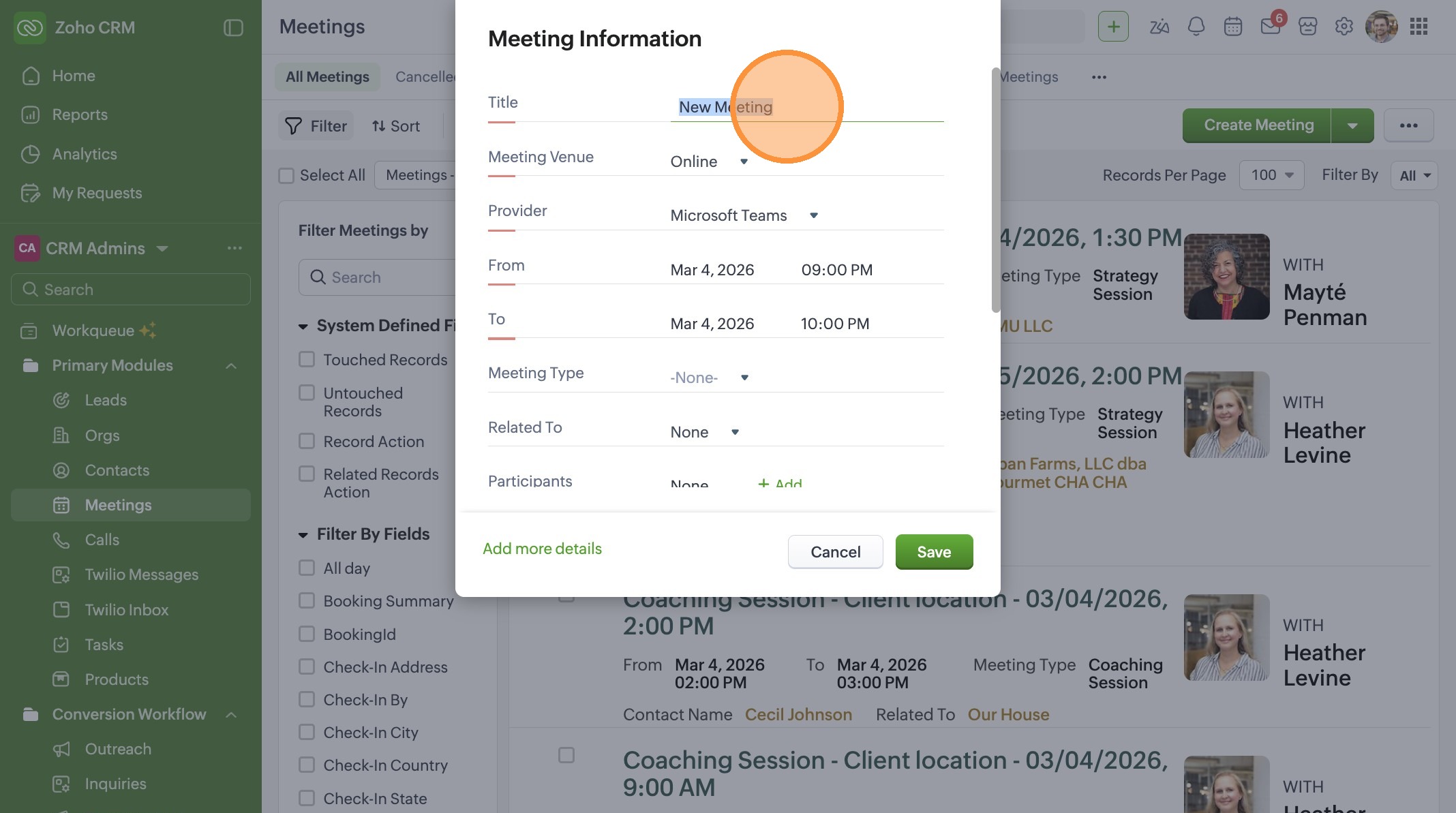
5. Choose "Client location" from the Meeting Venue list to record a meeting in the past.
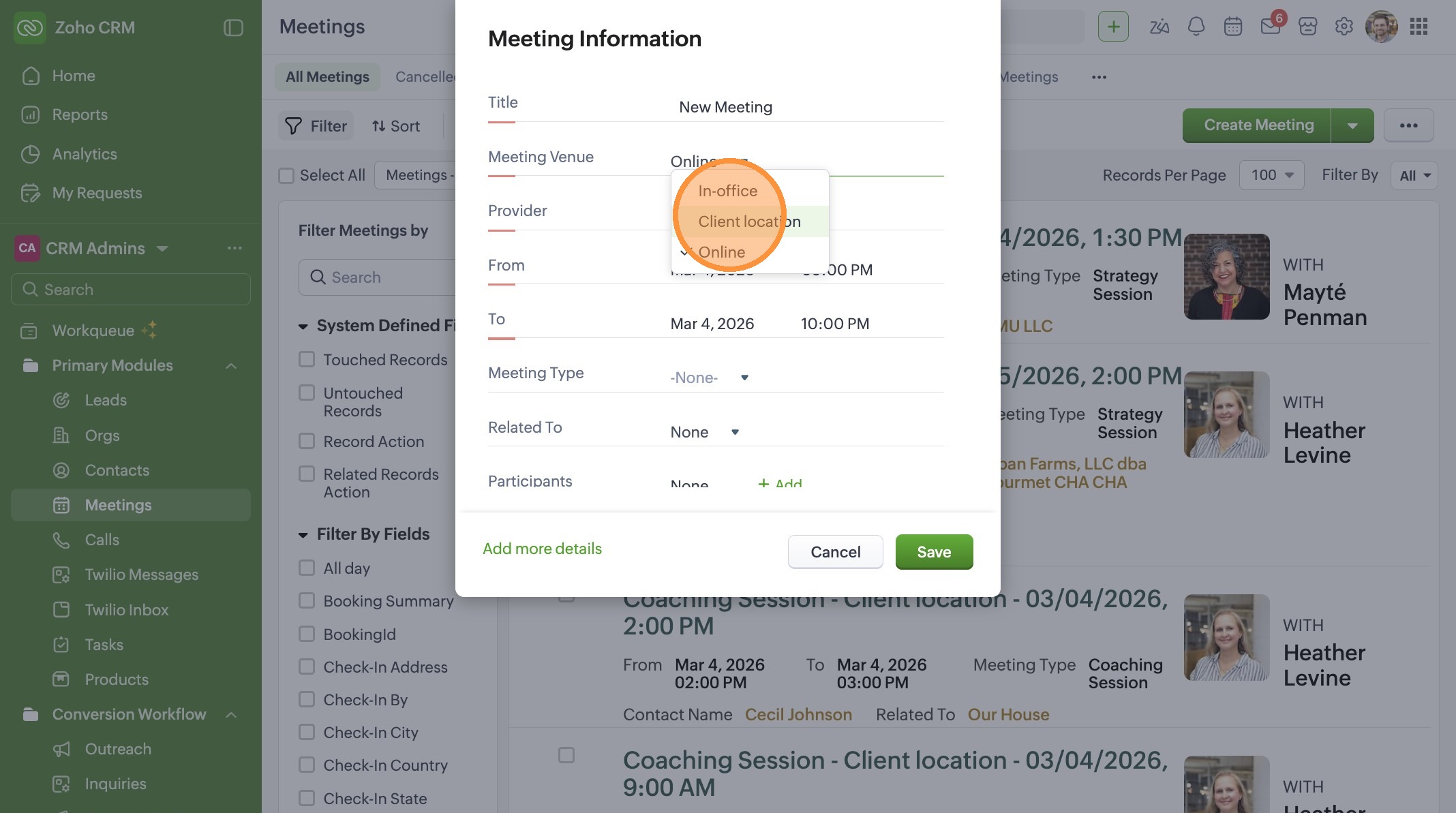
6. Enter which platform (like Zoom) you used for the meeting, or where you met with the client.
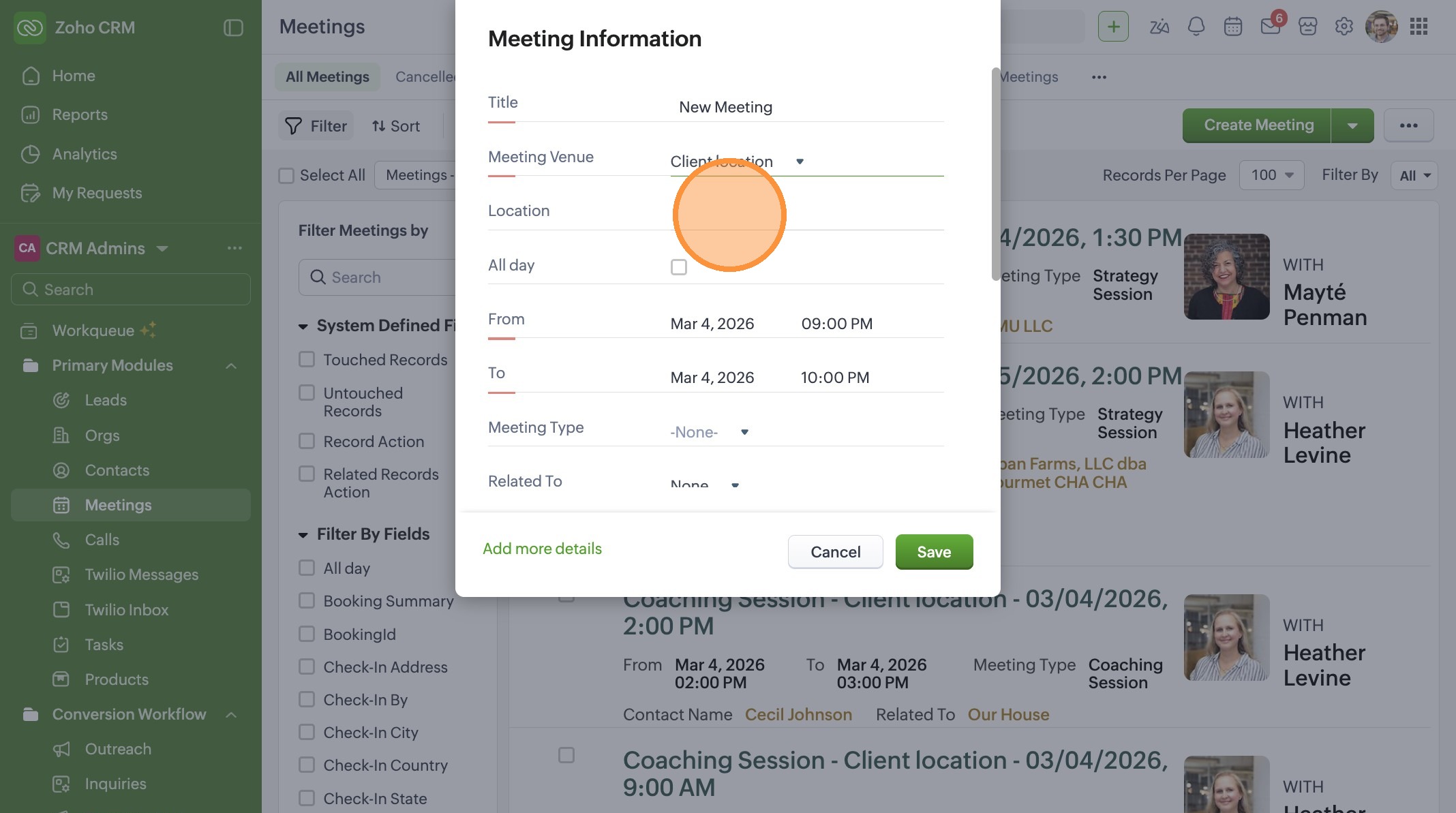
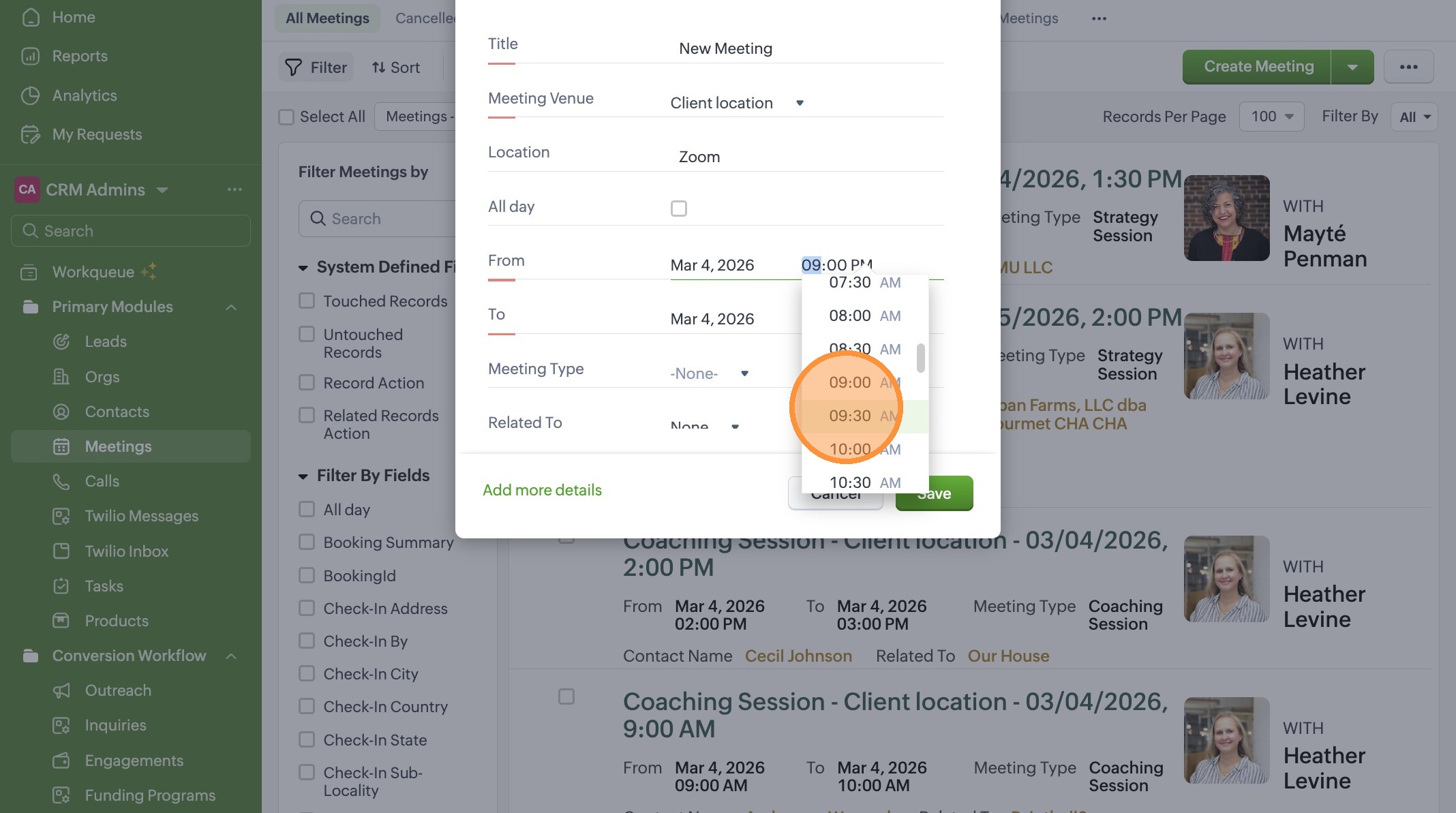
7. Change the start time by editing the From field.
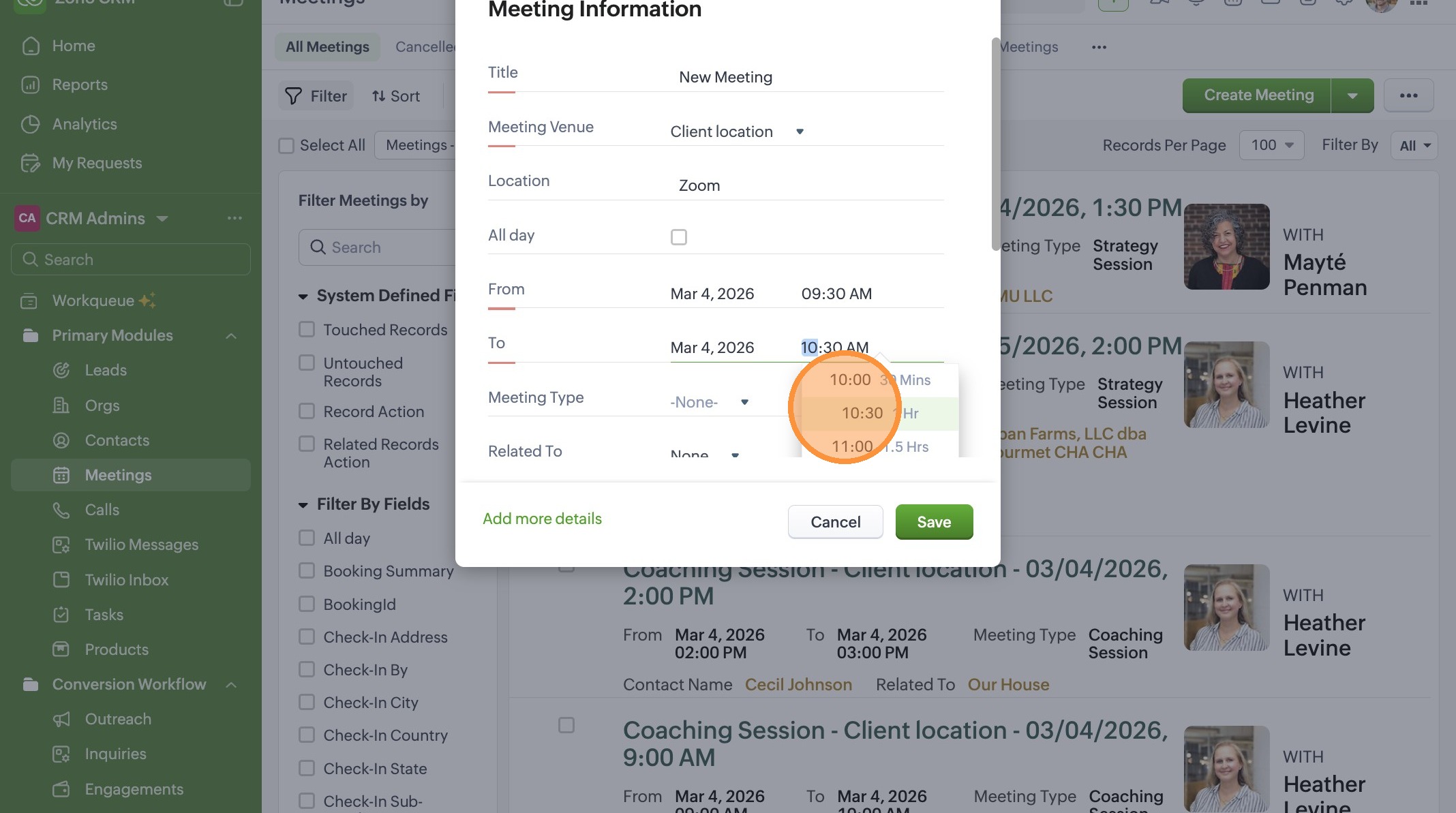
8. Change the end time by editing the To field.
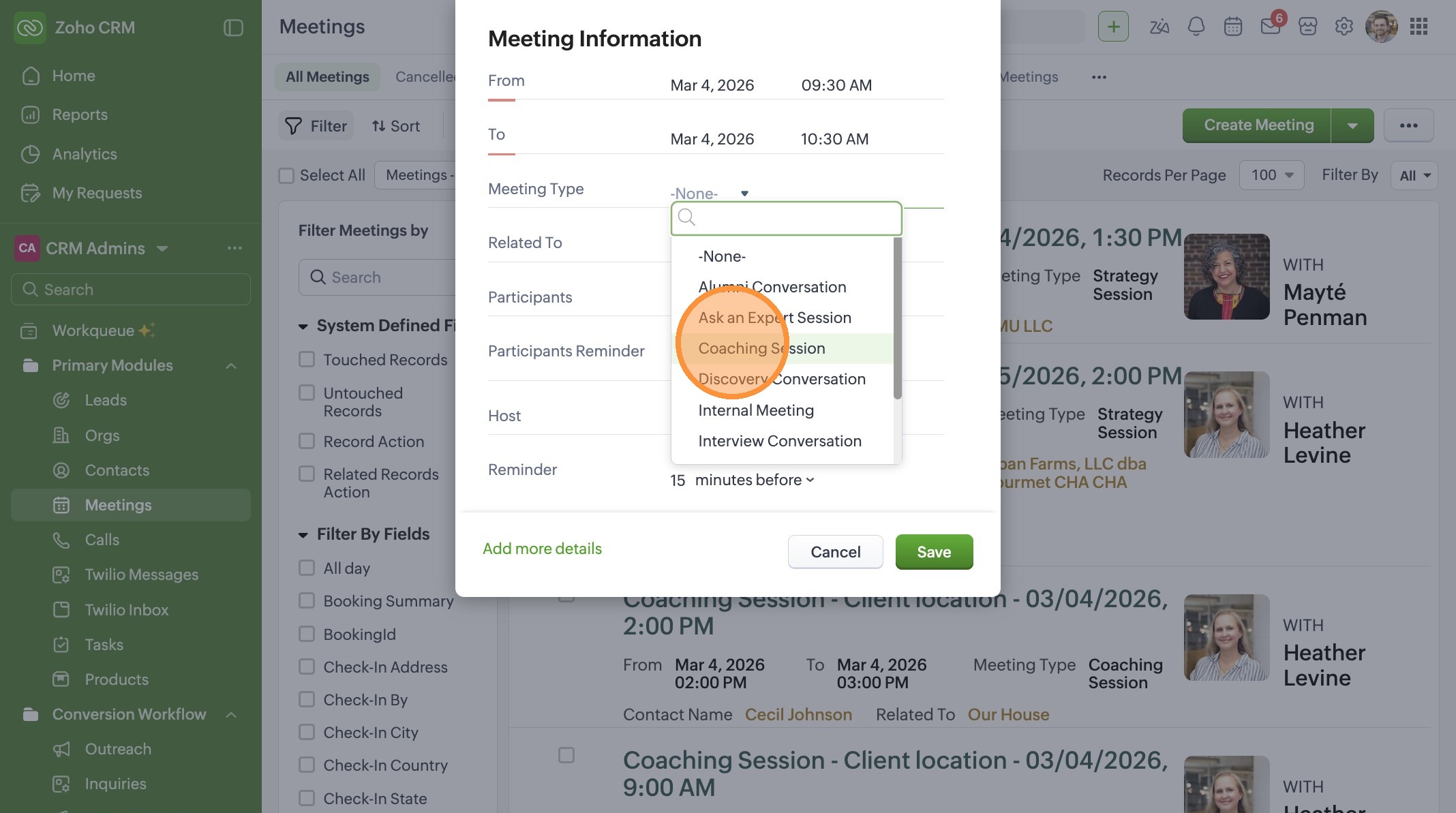
9. Choose the Meeting type. If you are meeting with the client for the first time, select Ask an Expert. If you are meeting with the client again, choose Coaching Session. If you are meeting with another coach or the TechTown Team, select Internal Meeting and skip to step 15.
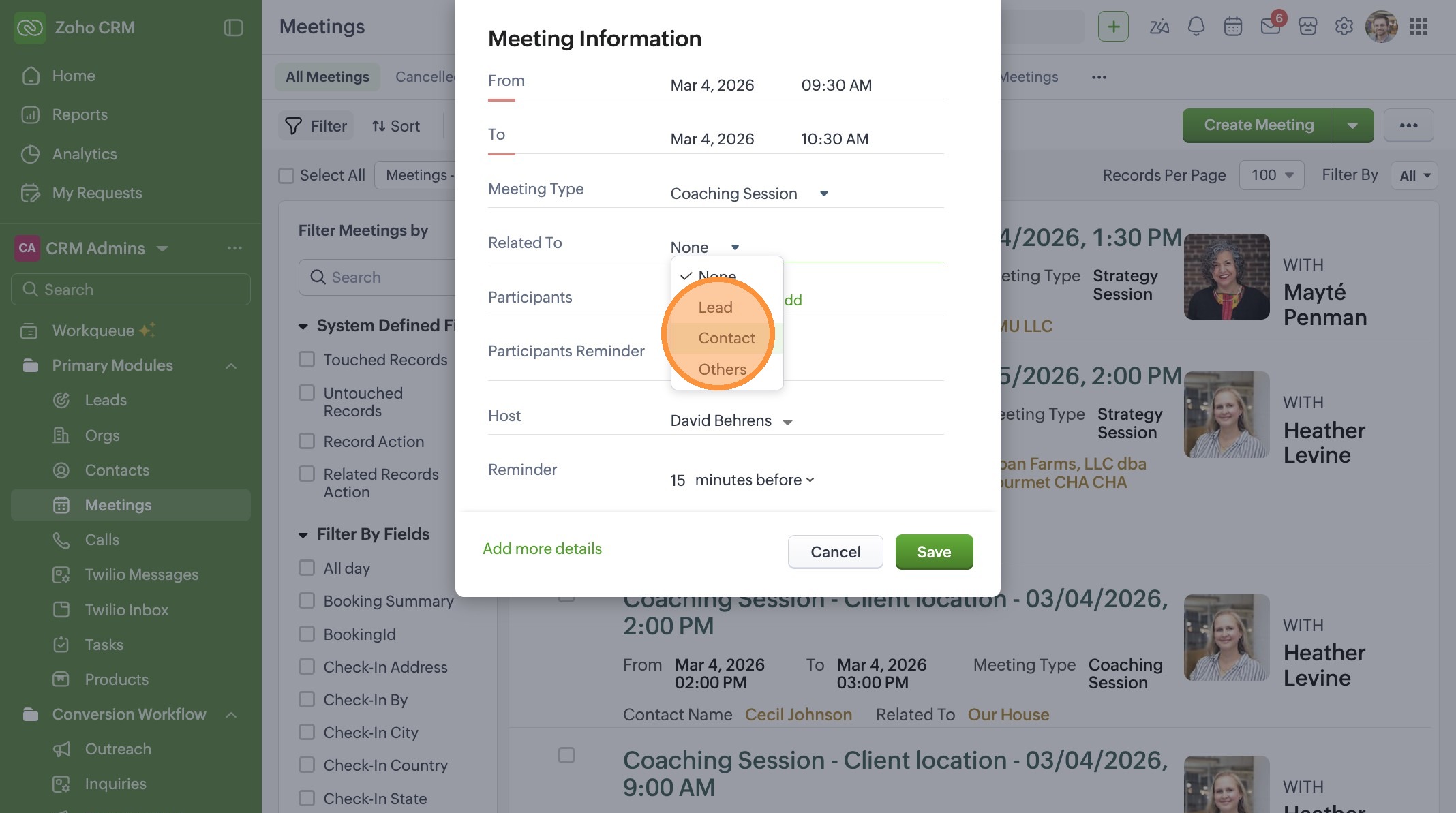
10. Select "Contact" from the Related To dropdown
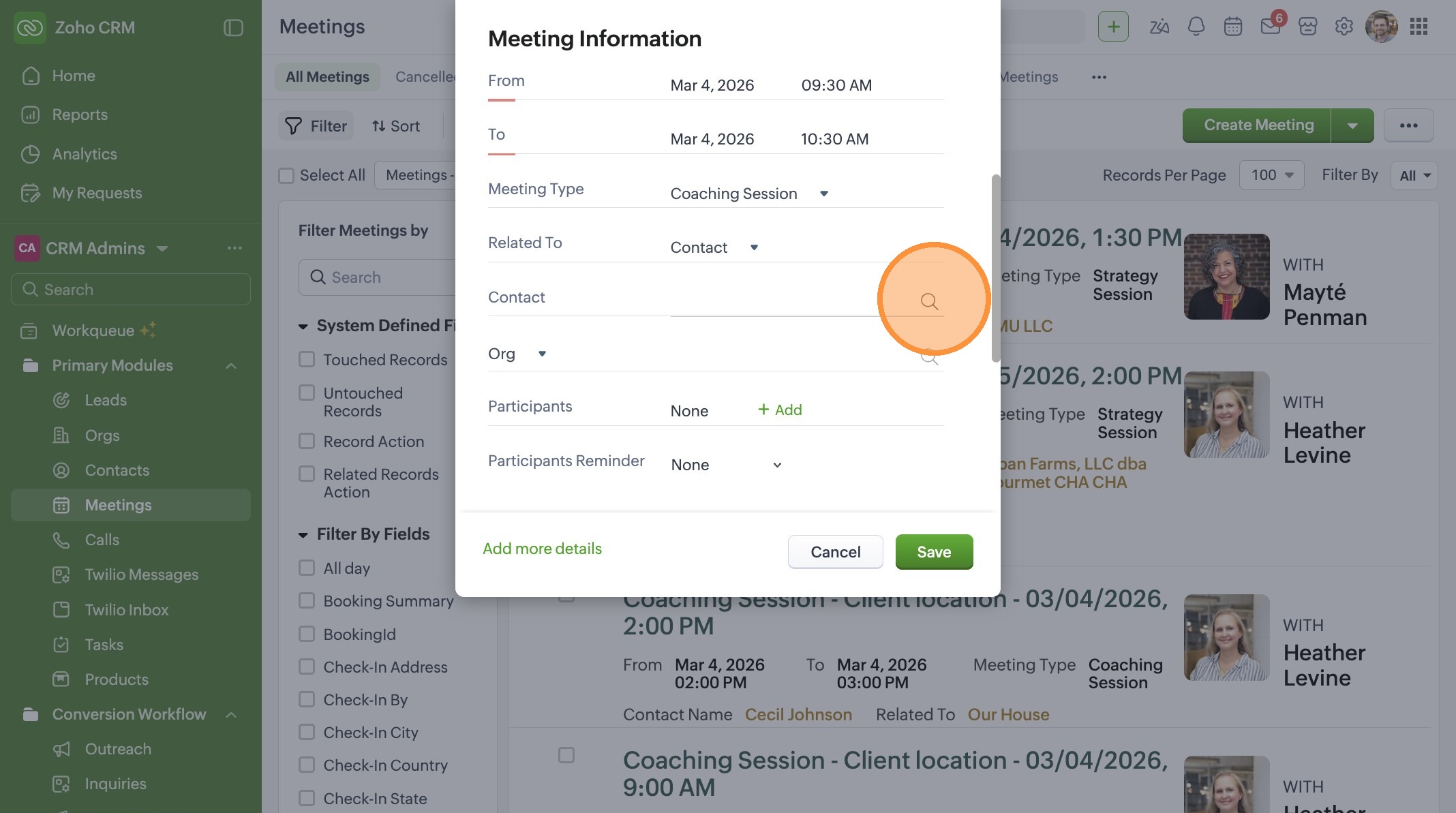
11. Click on the search bar to the right of the Contact field
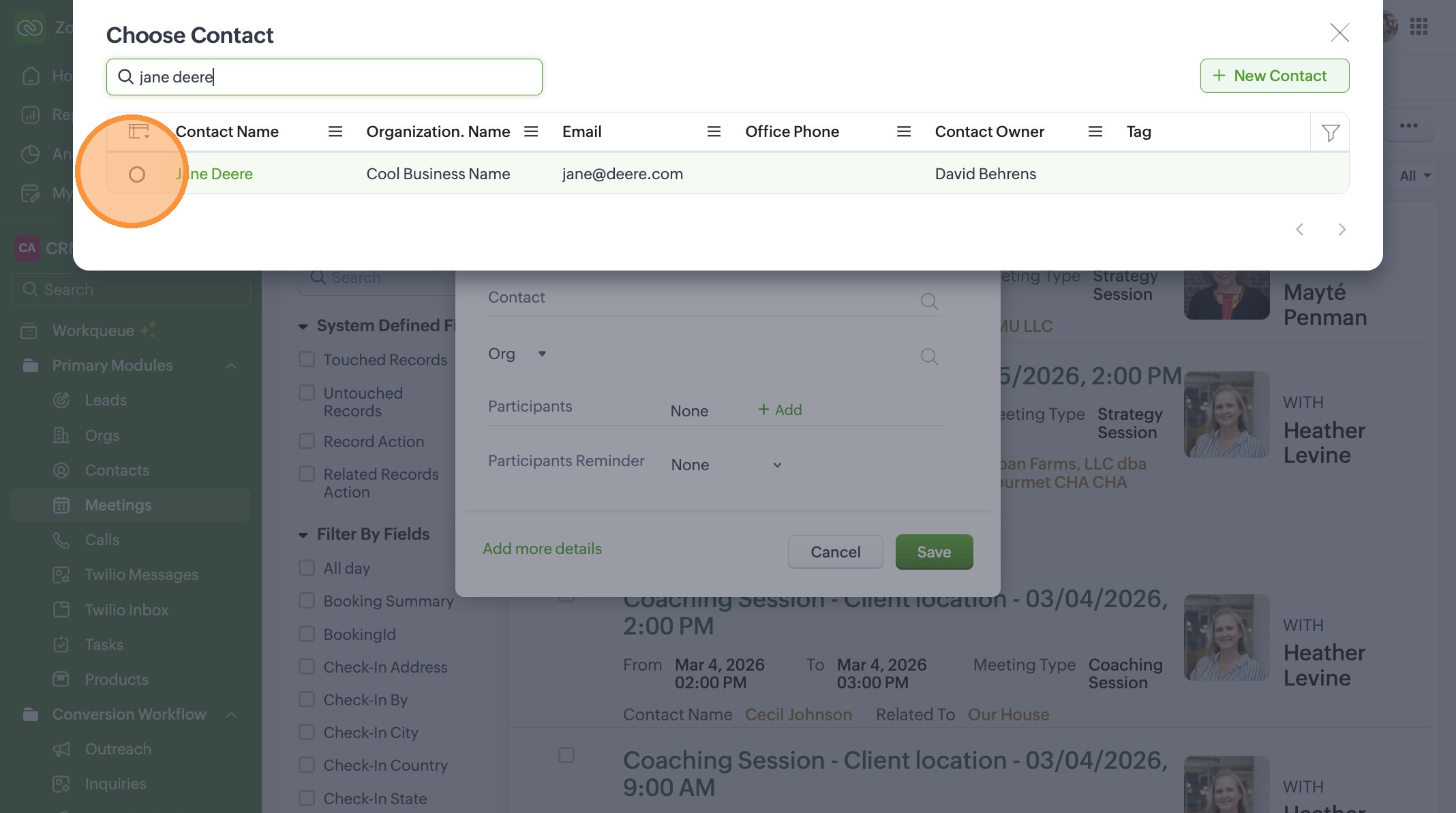
12. Click the "Search by Contact Name" field and enter the name of the contact you met with or added in earlier steps.
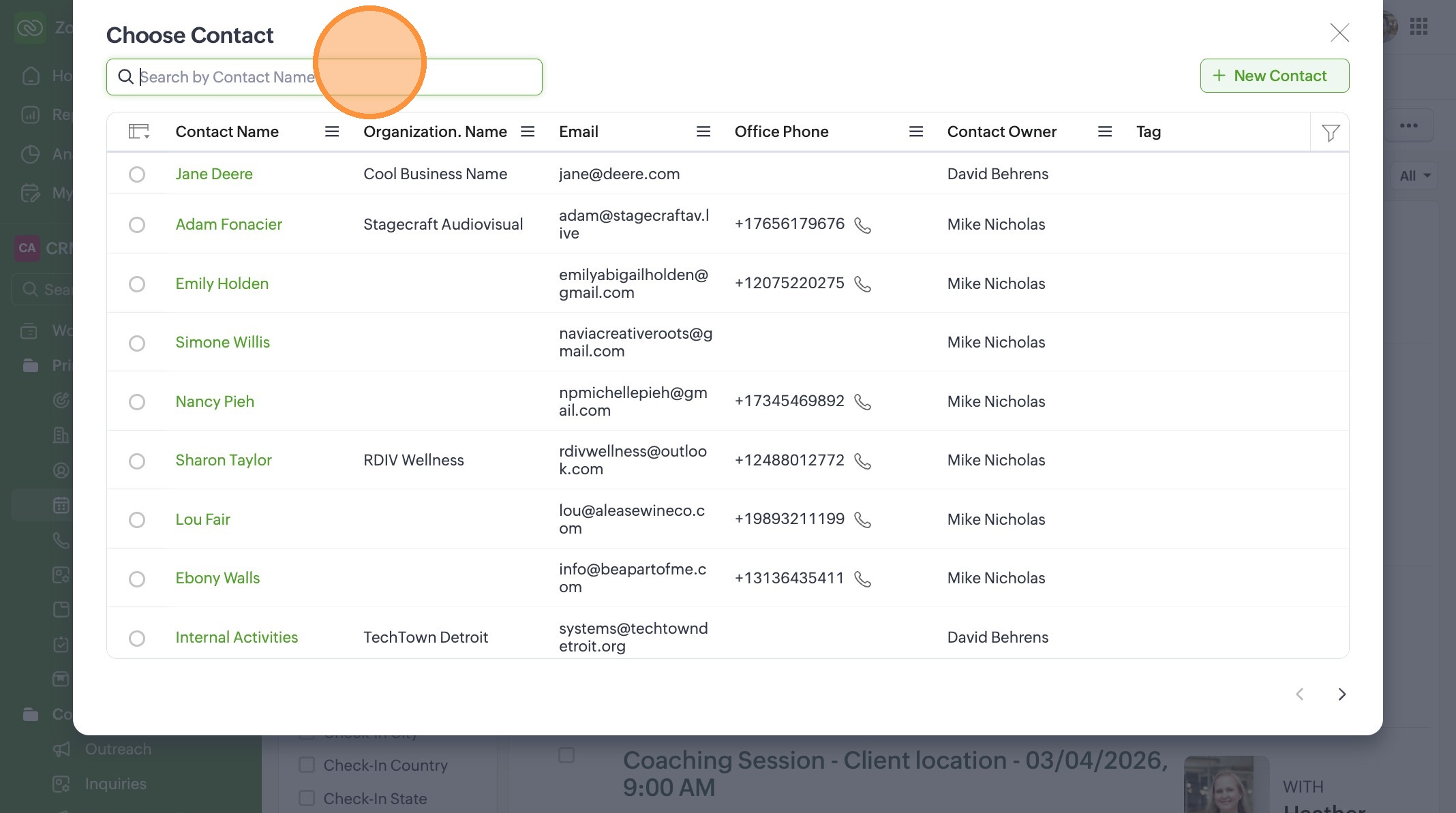
13. Select the Contact by clicking on the Radio button next to the Contact's name.
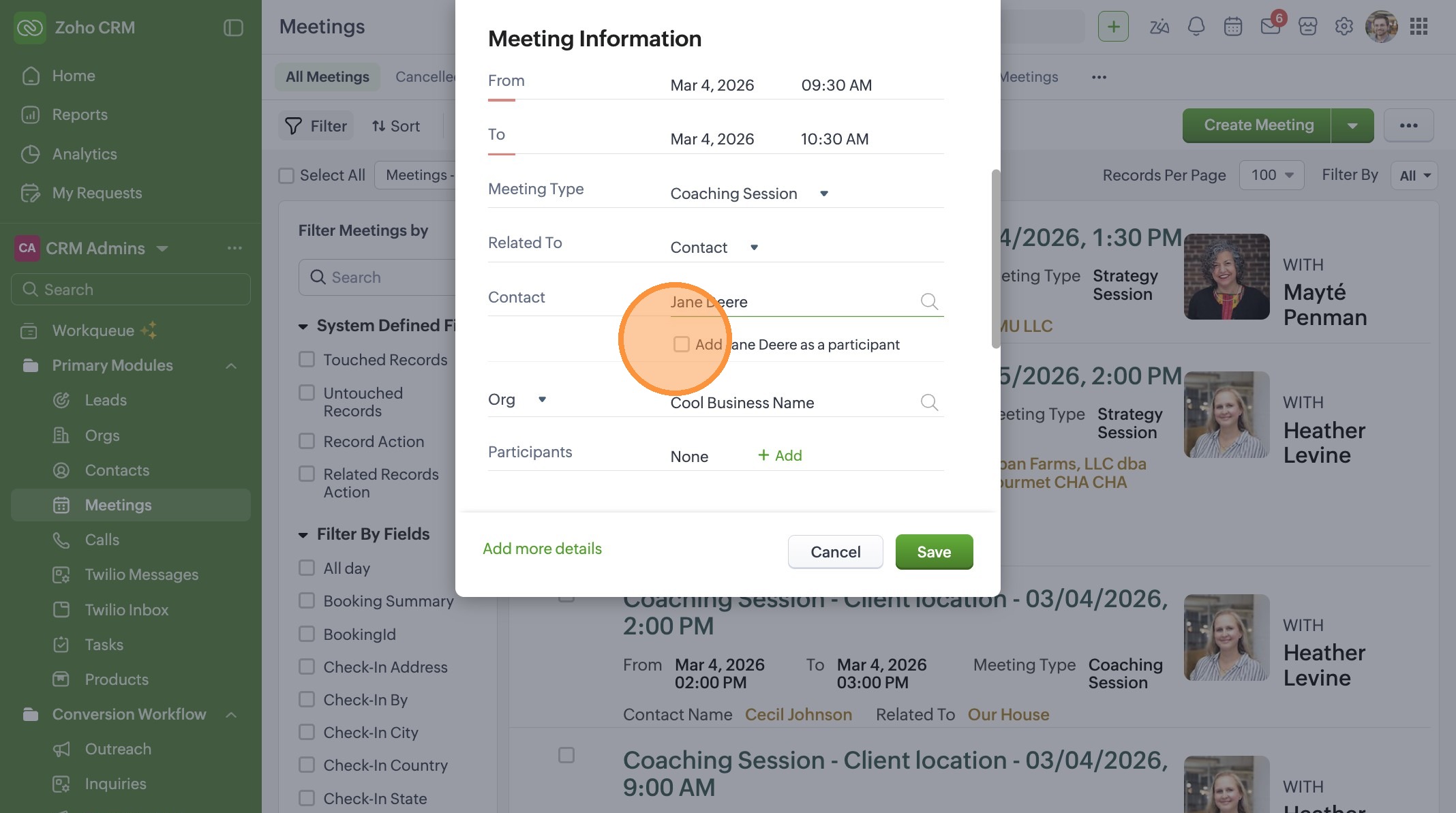
14. Click the "Add [Name] as a participant" checkbox.
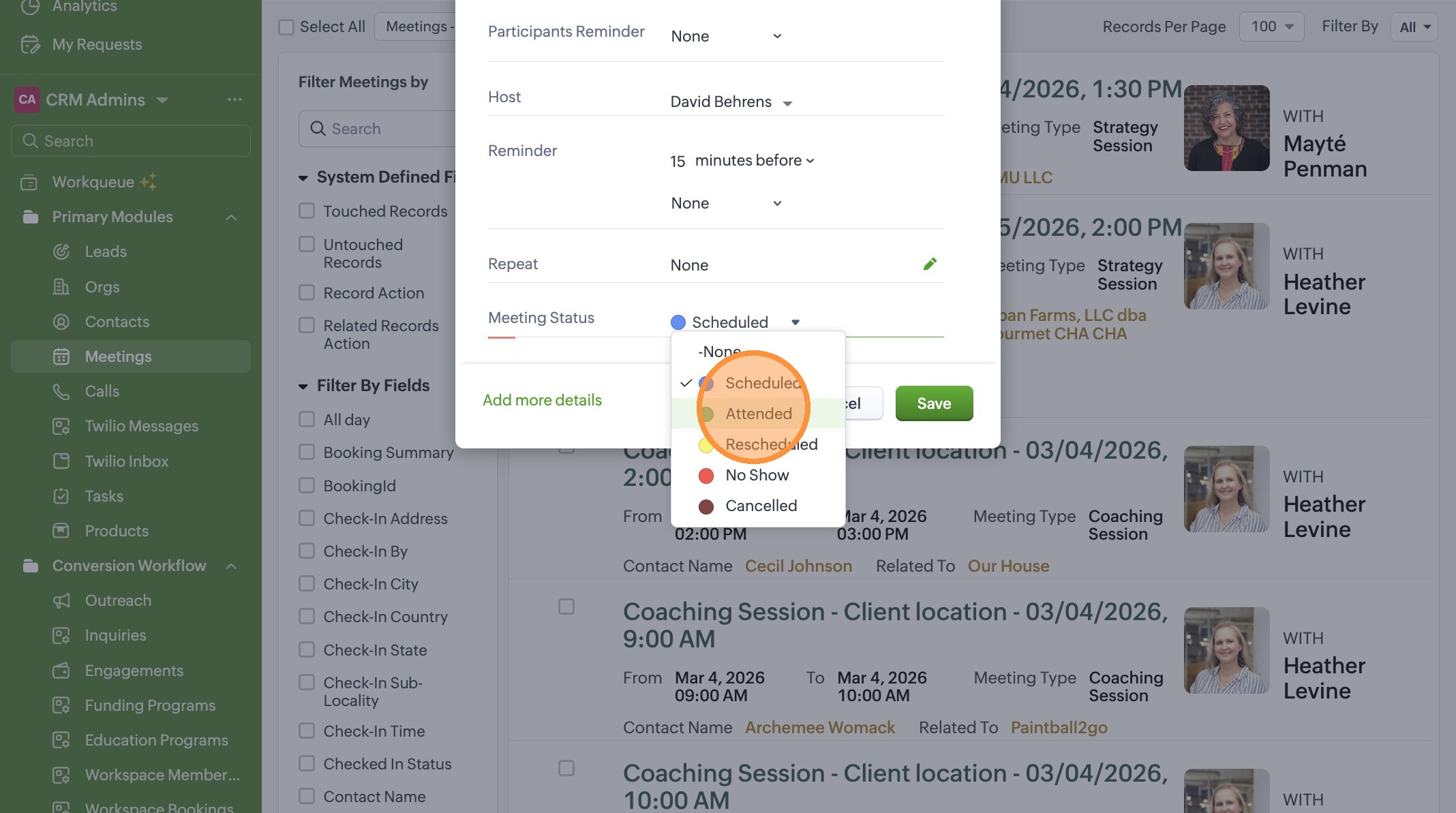
15. Set the Meeting Status accordingly
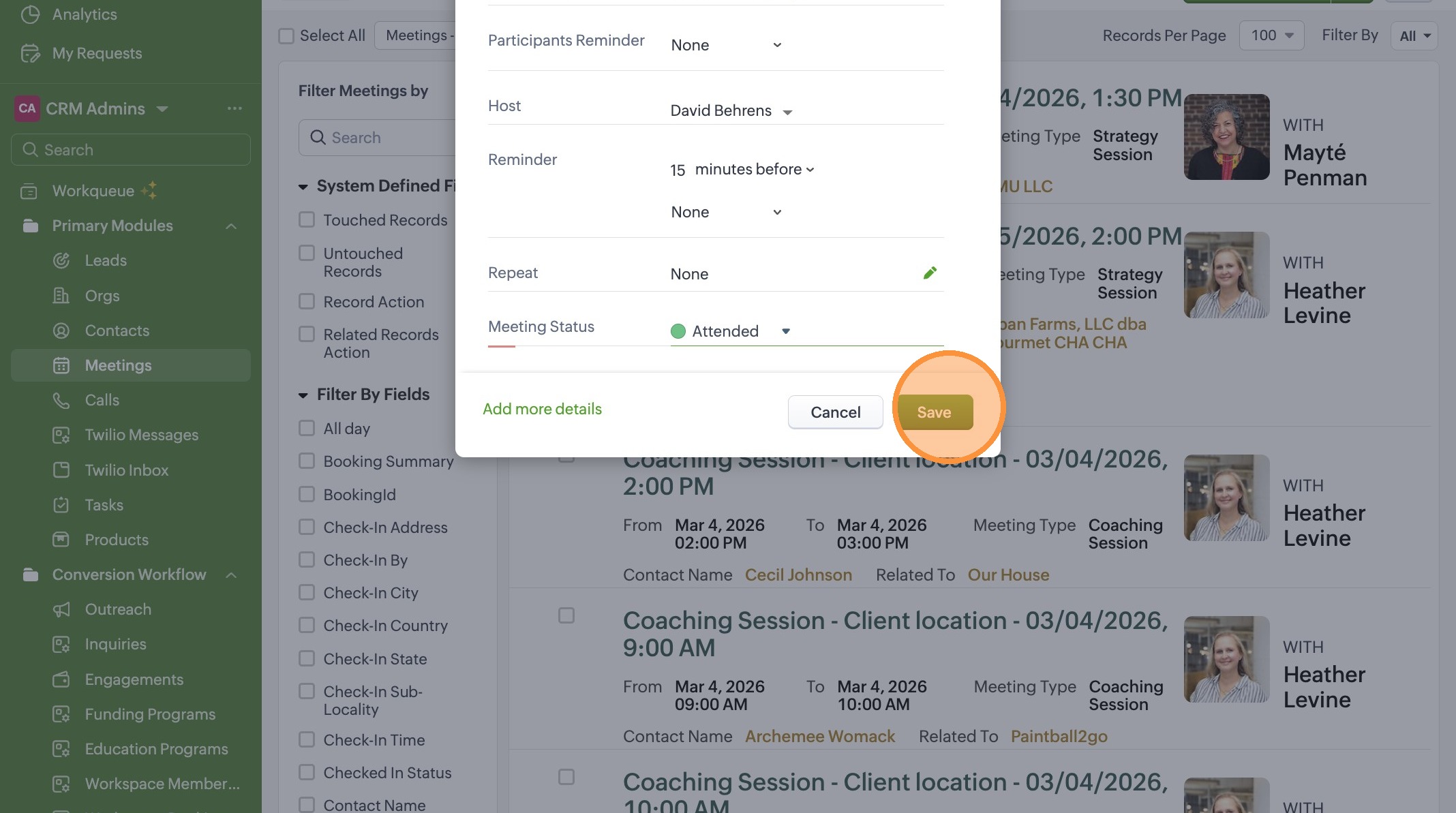
16. Click the "Save" button to save the meeting and begin adding notes.
17. Click on the meeting you just created. It may have renamed as of this point or still be named "New Meeting". If it hasn't renamed yet, it will once you enter the Meeting Detail page.
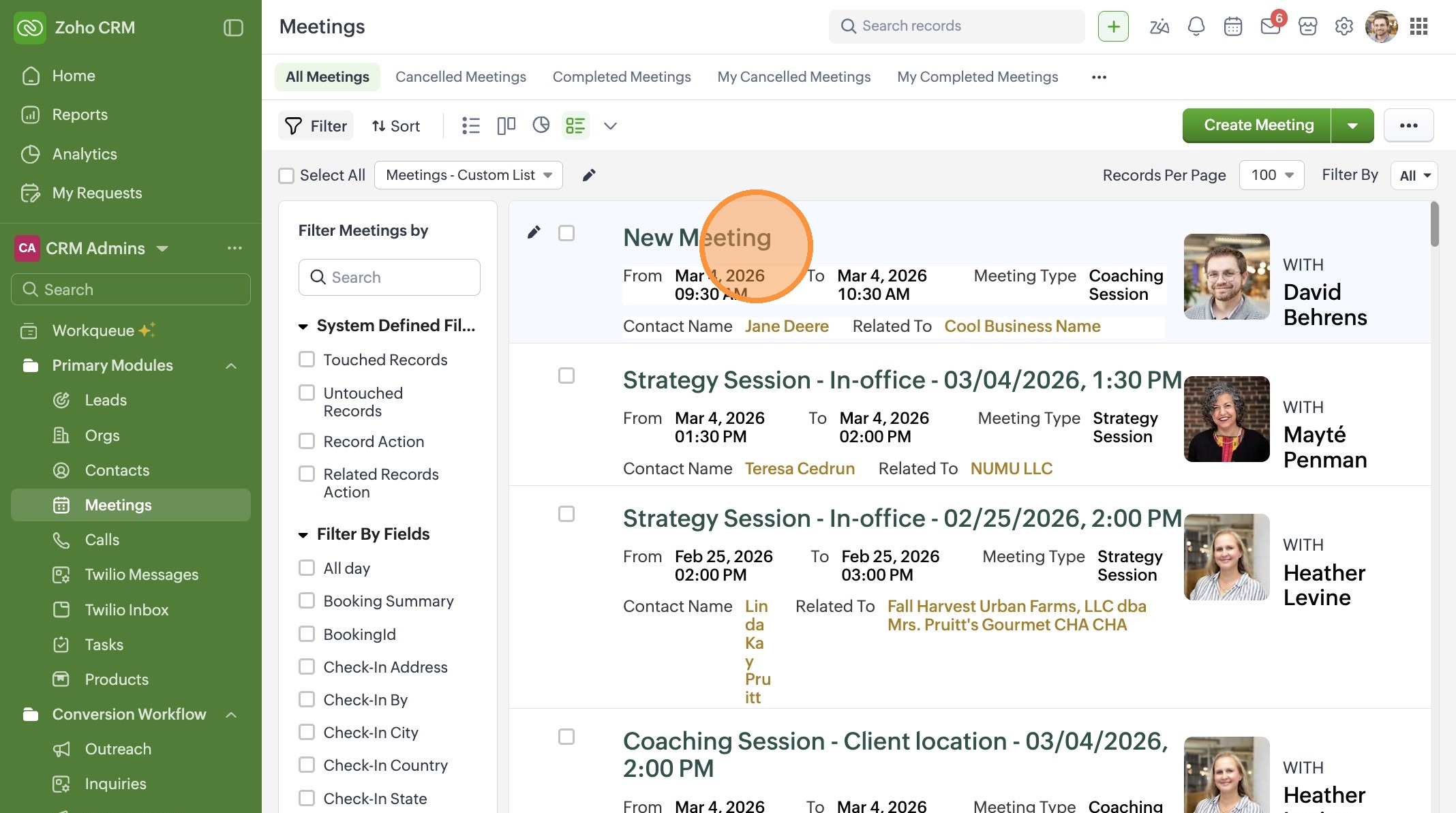
18. Scroll to the bottom of the page and then click on the "Add a note" field.
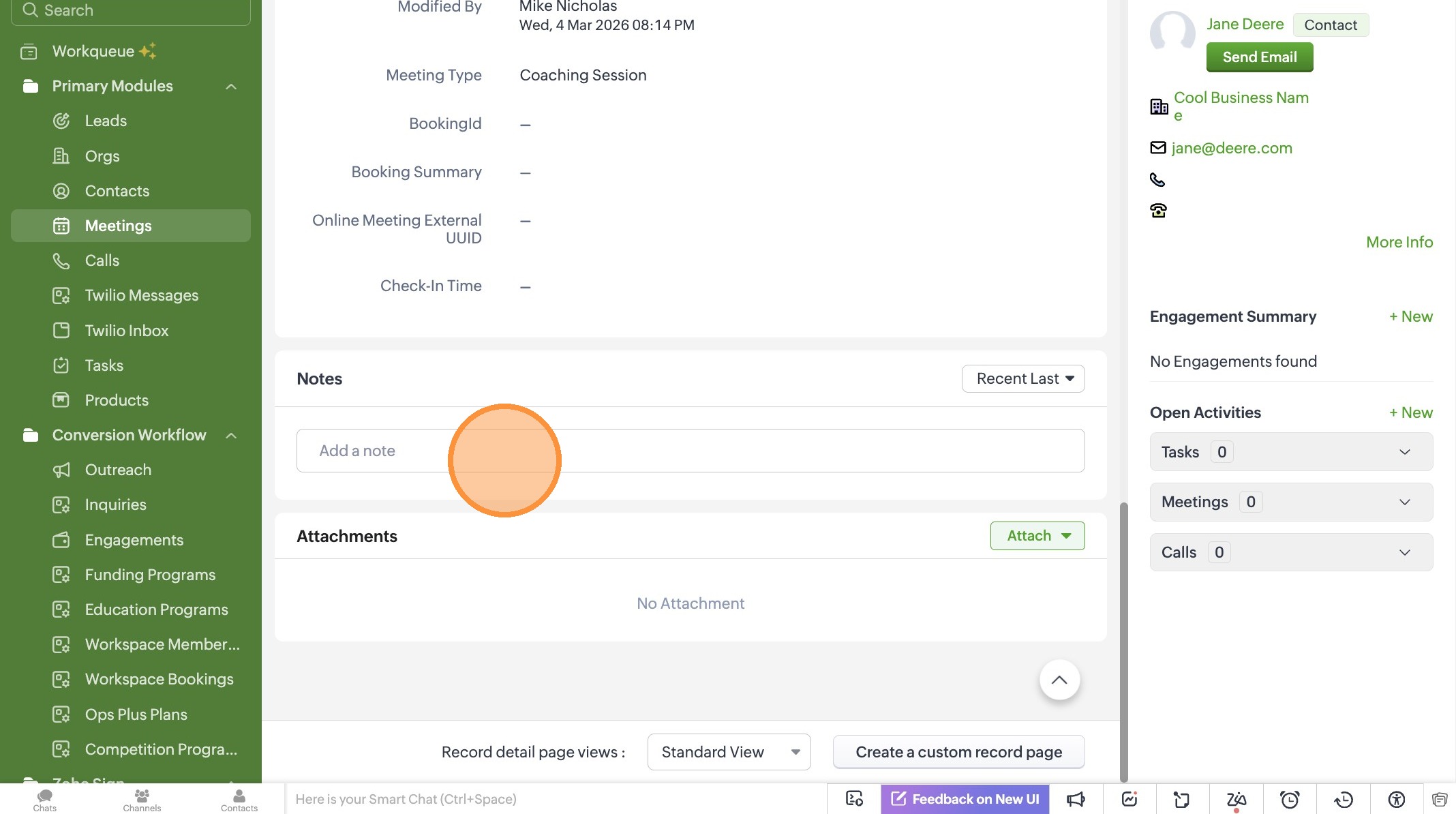
19. Click the "Title" field and add a Title to Your Note.
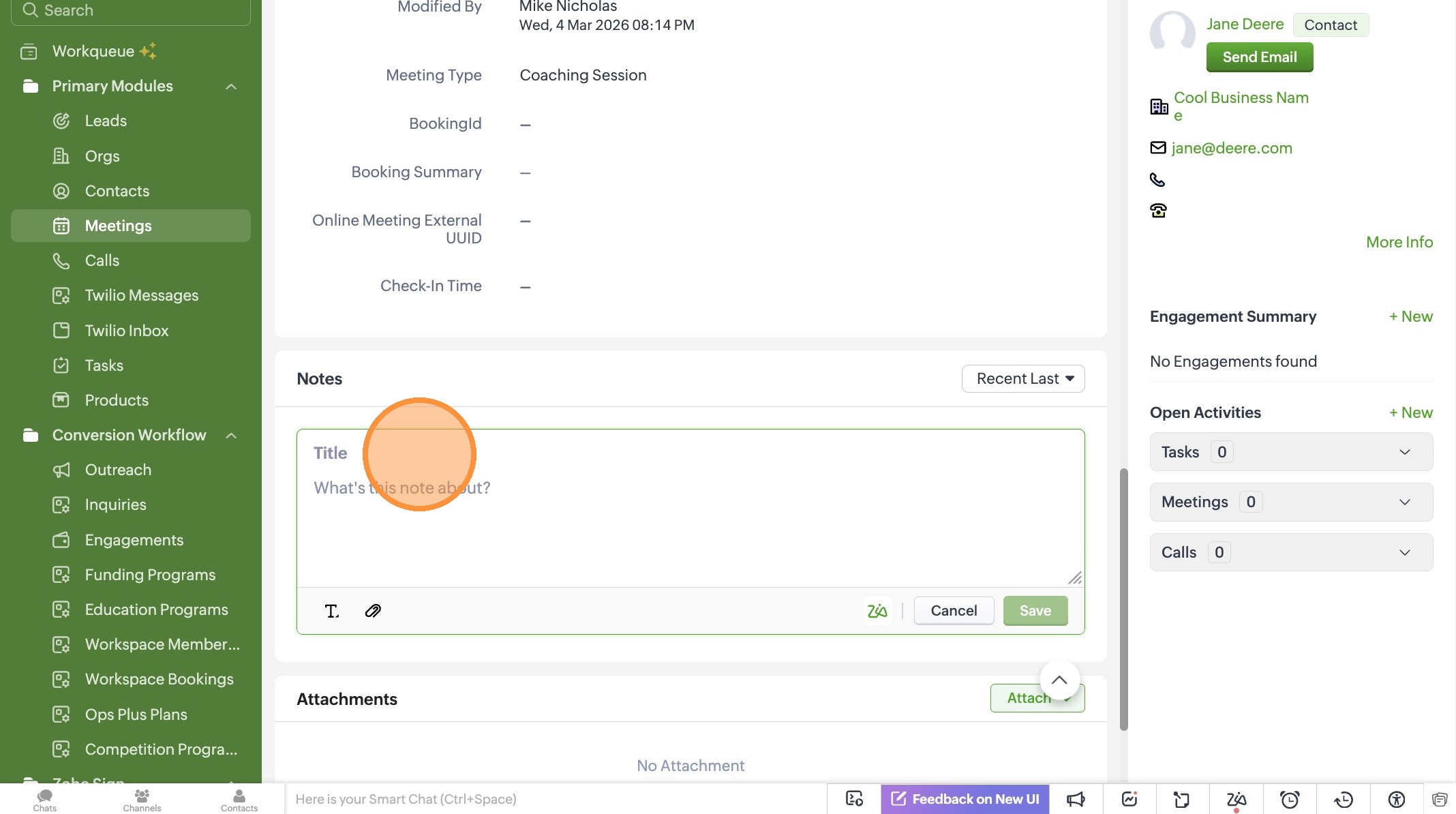
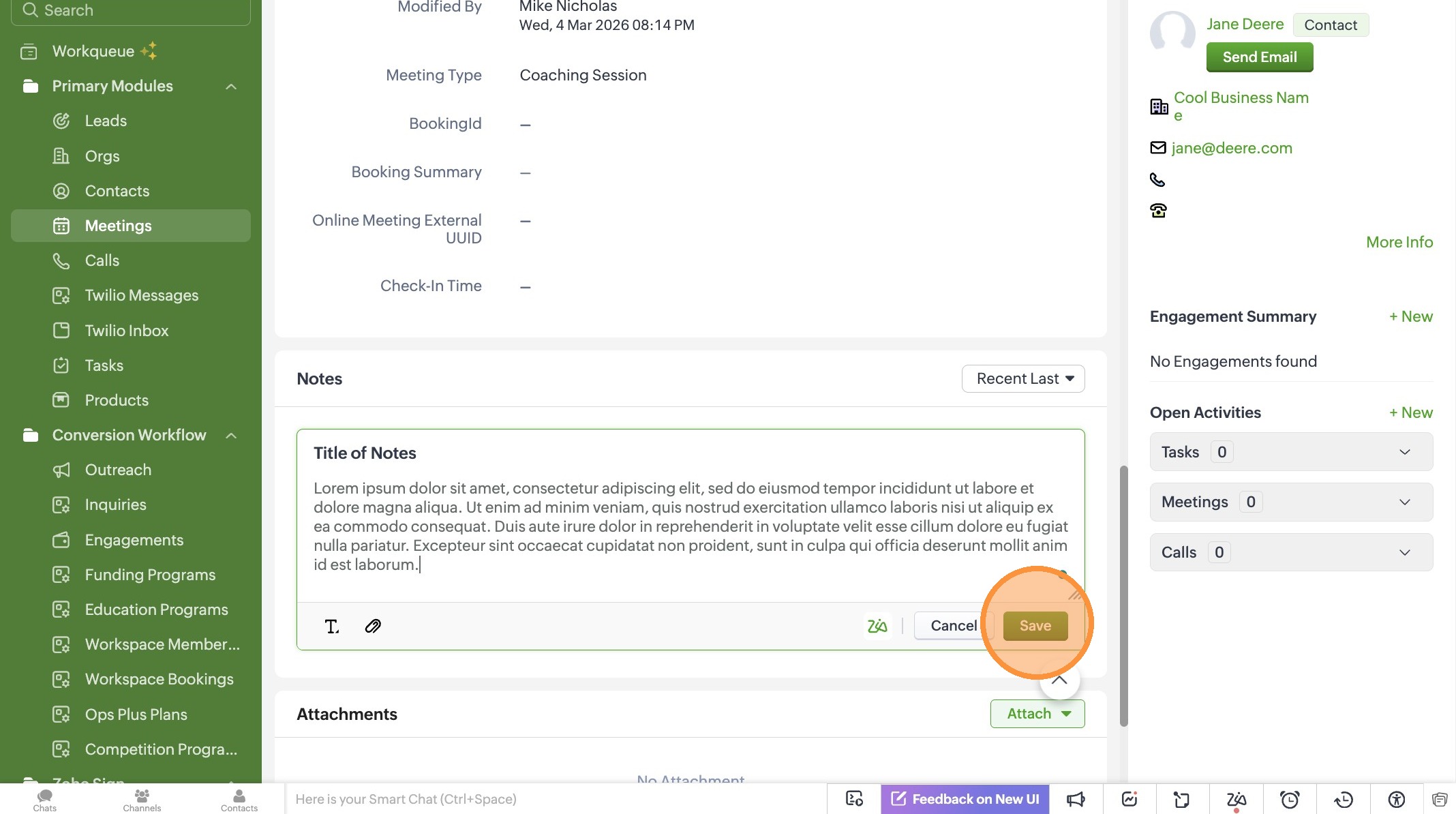
20. Click the "What's this note about?" field to add your detailed notes about your meeting.
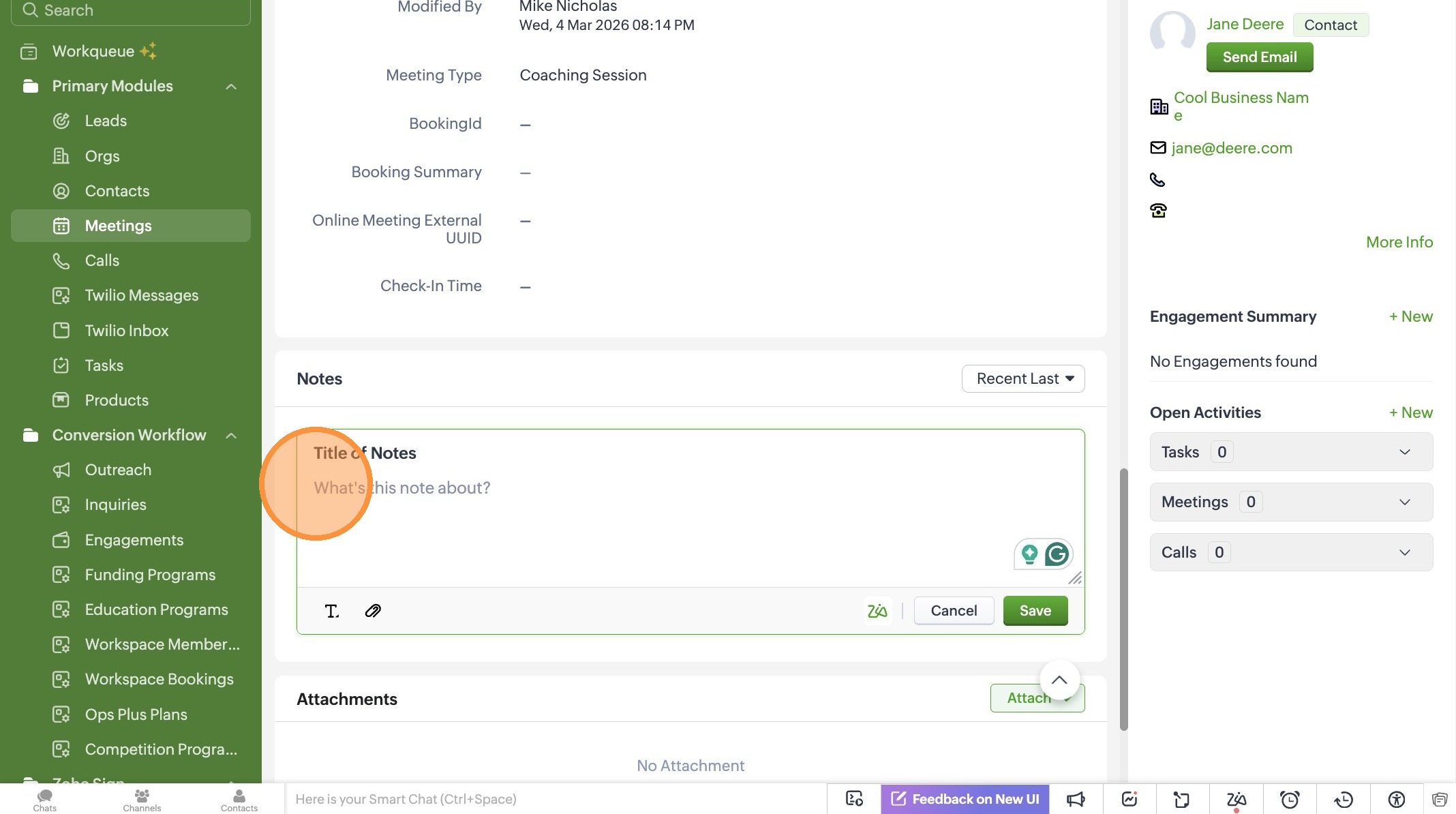
21. Click "Save" to end your note and complete the Meeting record.
Related Articles
Creating an Organization as a Coach - Quick Start
Create a New Organization in Zoho CRM Learn how to create a new organization in Zoho CRM. This guide walks you through entering the organization's name, business details, and address to ensure accurate record-keeping. 1. Navigate to the CRM Home ...Zoho CRM: Record Relationship Guide
To maintain a clean database for TechTown to use for grant reporting, we always follow the "Top-Down" creation rule: Org → Contact → Activity or Logs. Let's take a look at a breakdown of how we define these objects in our CRM: 1. Organizations (Orgs) ...Task Naming Conventions - Do's & Don'ts
Task Naming Conventions To keep our task timeline scannable, we use a [Category] - [Brief Description] format. This allows anyone to glance at the Org record and understand the history without clicking into every task. 1. Past Interactions (The Paper ...Understanding Parent Organizations & Multi-Entity Contacts
In our CRM, we often work with individuals who oversee multiple businesses or organizations with several physical locations. To keep our data clean and avoid duplicate Contact records, we use the Parent Org feature. 1. What is a Parent Organization? ...